How to download book in PDF from Archive.org OpenLibrary.org
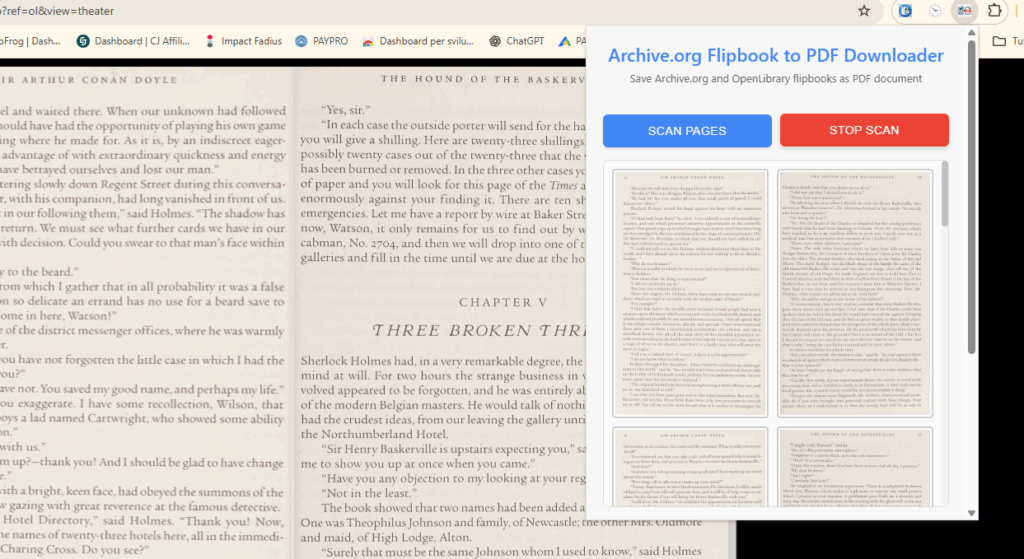
For researchers, students, and book lovers, Archive.org and OpenLibrary.org are treasure troves of free digital books. However, one limitation has always been the inability to easily download book previews for offline use. That’s where the Archive.org Book to PDF Downloader Chrome extension comes in.
This powerful tool allows users to convert book previews into downloadable PDFs, making it easier to study, annotate, and archive digital texts. Whether you’re working on an academic paper, preserving rare books, or just enjoy reading offline, this extension solves a critical problem in digital book access.
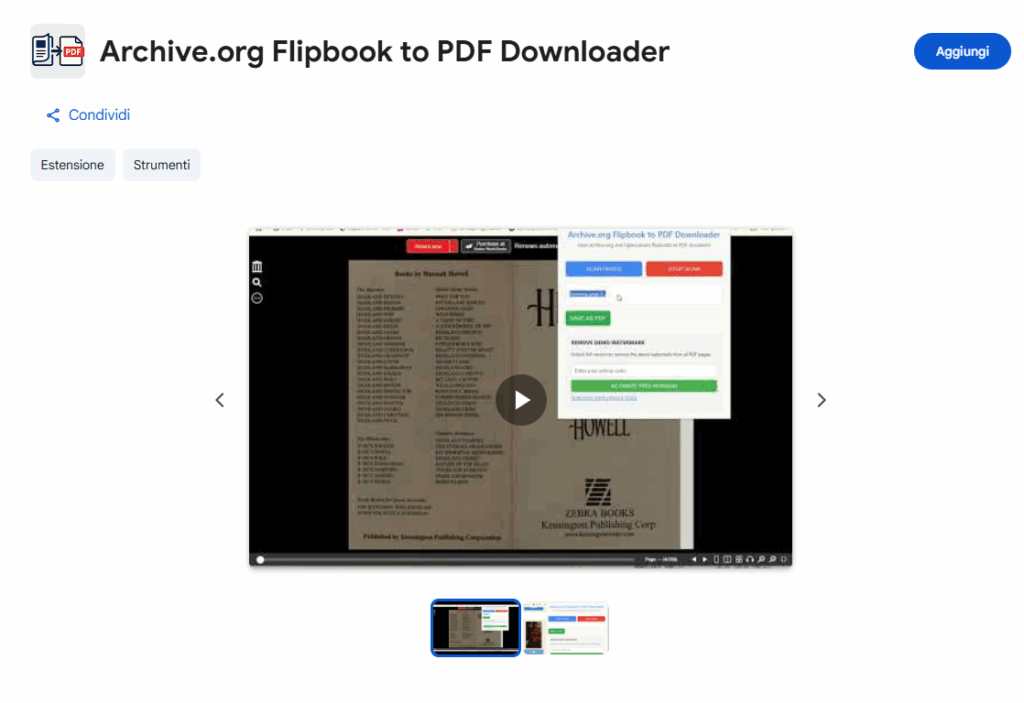
You can install this extension from the official page on the Chrome web store at the following link: https://chromewebstore.google.com/detail/archiveorg-flipbook-to-pd/egdopahkemfhieboaplafiabdfejfeip
Why This Extension Was Created
Many users of Archive.org and OpenLibrary.org have encountered the same frustration: previews are only available in-browser, and there’s no built-in way to save them as a single document. While some books can be borrowed as PDFs or EPUBs, many are only available as previews with limited page access.
Manually screenshotting each page is tedious, and existing tools often fail with blob-based images (a common format used by these platforms). This extension was designed to:
-
Automate the extraction process
-
Handle blob URLs seamlessly
-
Compile pages into a single PDF
-
Preserve image quality
How It Works
1. Automatic Page Scanning
Once activated, the extension:
-
Detects all available preview pages (including those loaded dynamically).
-
Scrolls automatically, capturing each page without manual intervention.
-
Skips duplicates, ensuring a clean, page-perfect output.
2. Blob URL Support
Unlike other tools that fail with blob URLs (blob:https://archive.org/...), this extension converts them into readable images using Canvas API, ensuring no pages are missed.
3. PDF Generation
After scanning, the extension:
-
Combines all images into a single PDF.
-
Optimizes file size without sacrificing readability.
-
Provides a one-click download.
Who Should Use This Extension?
1. Researchers & Academics
-
Save book previews for annotations and citations.
-
Build offline reference libraries for long-term projects.
2. Students
-
Extract textbook previews for study materials.
-
Avoid reliance on constant internet access.
3. Book Archivists & Enthusiasts
-
Preserve rare or out-of-print books in PDF format.
-
Create personal digital libraries.
4. Casual Readers
-
Read books offline without manually screenshotting pages.
-
Store previews before they become unavailable.
Comparison With Alternatives
| Feature | This Extension | Manual Screenshots | Other Downloaders |
|---|---|---|---|
| Auto-Scroll & Capture | ✅ Yes | ❌ No | ❌ Some |
| Handles Blob URLs | ✅ Yes | ❌ No | ❌ Most fail |
| Removes Duplicates | ✅ Yes | ❌ No | ⚠️ Sometimes |
| One-Click PDF Export | ✅ Yes | ❌ No | ✅ Some |
| Works on Archive.org/OpenLibrary | ✅ Yes | ✅ Yes | ❌ Many don’t |
Why this extension wins:
-
No manual work – Fully automated.
-
No missing pages – Handles dynamic loading and blob URLs.
-
Clean PDF output – No duplicates or formatting issues.
Ethical Considerations
This tool is designed for fair use and respects copyright:
-
Only works on publicly available previews (not borrowed/restricted books).
-
Does not bypass paywalls or borrowing limits.
-
Ideal for research, not piracy.
Users should always check copyright status before redistributing downloaded content.
How to Install & Use
Installation
-
Download from the Chrome Web Store (or load as an unpacked extension).
Usage
-
Open a book preview on Archive.org or OpenLibrary.org.
-
Click the extension icon.
-
Start scanning – it will auto-scroll and capture pages.
-
Download PDF when finished.