Best WhatsApp Transfer Software to copy chats between Android and iPhone
Best WhatsApp Transfer Software to copy chats between Android and iPhone
After purchasing your new smartphone, the first thought went to all the chats, videos, music and photos that you have shared or that have been sent to you via WhatsApp in all these months. By configuring the new phone and installing the messaging app without having taken the necessary precautions, you risk having to start over with completely empty chats, thus losing everything you had sent and received over time.
Below we intend to describe different methods to transfer WhatsApp Chats from one phone to another without losing a single word (or a single multimedia file) of what you had received in the past.
To transfer between identical operating systems, all you need to do is connect both phones to the Internet and restore the Backup of the chats (made on Google Drive or iCloud) to the new phone (Android or iPhone); if, on the other hand, you have to transfer between different operating systems, you will need a WhatsApp Transfer software to complete the task. Here are the best WhatsApp Transfer software you could use.
a. MobileTrans WhatsApp Transfer
b. BackupTrans
c. dr.Fone WhatsApp Transfer
MobileTrans
MobileTrans WhatsApp Transfer is the best tool you can use to copy WhatsApp chats from a device to another one (from Android to iPhone or from iPhone to Android). Here is the main screenshot of the program after installation:
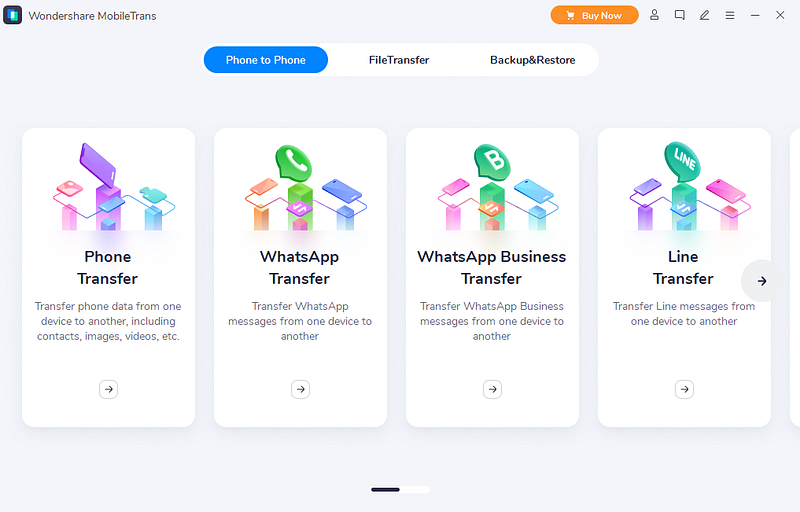
Click on WhatsApp Transfer to open this feature and connect both your device to the PC or Mac via USB.
After this, the app will automatically detect the connected devices and mark them as source or destination. You can use the “flip” button to interchange source and destination accordingly.
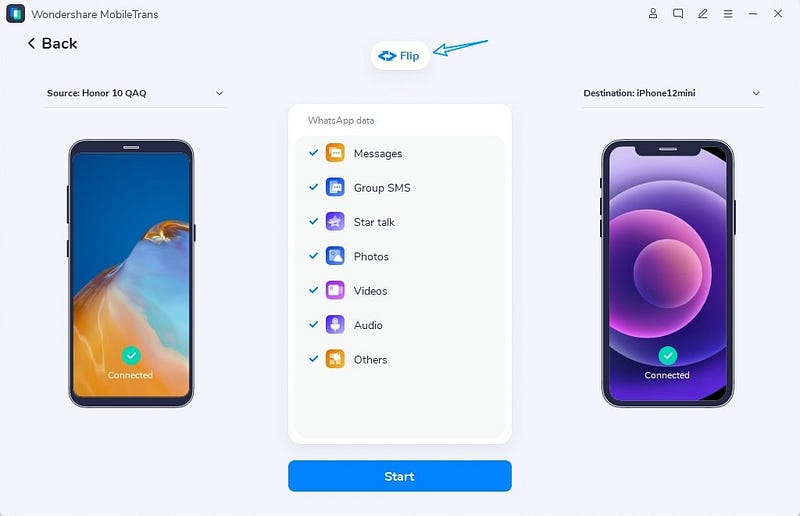
Next, click “Start” to transfer WhatsApp chats from Android to iPhone.
That’s all!
BackupTrans
If you feel it is necessary to transfer WhatsApp from Android to iPhone (or viceversa) without losing anything, you could use a solution like BackupTrans WhatsApp Trasnfer: if you have never heard of it, it is a program that can move WhatsApp chats from a phone to more in just a couple of clicks.
This solution is not free: its basic license, valid for three devices and for a single PC, costs € 27.50 + VAT for Windows or € 32 + VAT for macOS; however, a trial version of the program is available that allows you to test its effective efficiency on a limited number of messages.
In any case, before even using the software, it is necessary to satisfy some fundamental requirements, which I am going to list below.
- On the computer, a copy of the msgstore.db.crypt12 file must be stored, i.e. the backup saved in the memory from the old Android phone. After making the backup, use a file manager (eg. File Manager +) to auto-send you the file in question residing in the \ WhatsApp \ Databases \ folder and the entire \ WhatsApp \ Media directory.
- On the old Android phone, the USB debugging option must be active: to do this, go to the Settings> About phone section, press Build number 7 consecutive times and, after receiving confirmation that developer mode has been activated, returns to the main Settings screen. From there, tap on the Development Options item and move the levers corresponding to USB Debugging and Install via USB to On.
- On the new iPhone, you need to temporarily disable iCloud backup: to do this, go to Settings> [your name]> iCloud> iCloud Backup and move the relative lever to Disabled. Furthermore, always on the same device, the SIM card must have already been inserted and the initial WhatsApp configuration phase completed.
Once this is done, open WhatsApp Transfer software and connect the Android device to PC using the appropriate USB cable, wait for the automatic installation of the Backuptrans WA Sync app on the mobile phone, press No to the downgrade request that appears on the computer and, to complete the backup import, click on the File menu> Import Android backup WhatsApp data, choose the msgstore.db.crypt12 file copied earlier and press the OK button. Once the encryption key has been extracted, you can disconnect the Android device.
Once the backup import is complete, press the Transfer messages from Android to iPhone button, wait for the transfer to be completed and that’s it: all chats will be made available on the new iPhone! After completing everything you can activate the iCloud backup on the iPhone again.
dr.Fone WhatsApp Transfer
Another good WhatsApp Transfer software is dr.Fone — WhatsApp Transfer. With this tool, you can easily copy WhatsApp chats from Android to iPhone (or viceversa). Here are the steps to follow:
Step 1: Download and install dr.Fone on your PC or Mac. After this, launch it and then select “WhatsApp Transfer”.

Step 2: Connect both phones (Android and iPhone) using USB cables.
Step 3: Tap on the “Transfer” to start the process.

Finally, all your WhatsApp data from iPhone get transferred to an android phone.